

Free Traktor F1 Mapping – 2 Decks, FXs and More
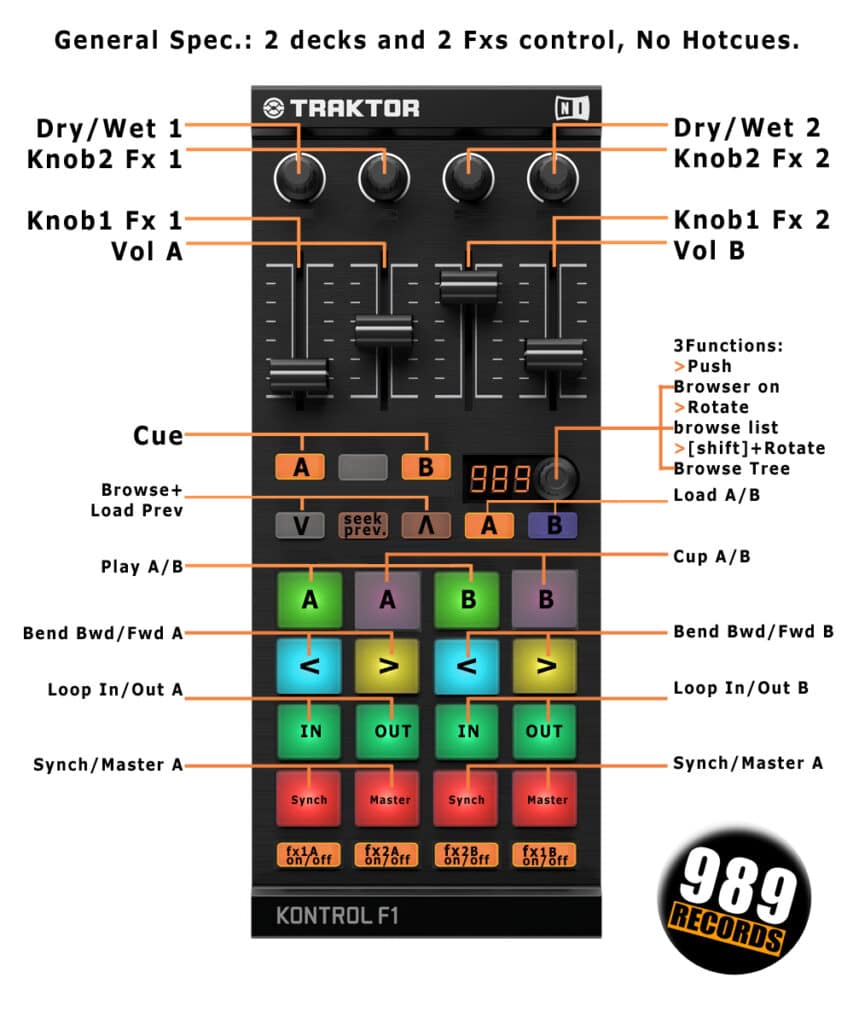
A free custom mapping (.tsi) for the Traktor Kontrol F1, built by 989 Records. The F1’s factory mapping only controls one deck: this one turns the F1 into an X1-style controller for two decks at once, with the faders working as a standard two-channel mixer.
Set your cue point on the first beat of the track, so you can jump straight back to the top whenever you need to. For the FX pair, a reverb or delay on the first slot and a filter on the second is the combination we use most, for bringing a track in smoothly.
Full walkthrough on importing a .tsi file: Native Instruments support.
Standard Traktor Controller Manager mapping (.tsi), imported via Preferences → Controller Manager → Import. Works on macOS and Windows.
The idea is to use the F1 as an X1 controller, but with the mapping’s fader functions enabled. However, this mapping doesn’t include hot cues and can control only two of the three effects available in Traktor.
To use the Cup function correctly, we suggest putting the cup point at the first beat of the track so you can start playing the track from the beginning when needed.
You can also define loops for each deck using the mapped buttons Loop IN/OUT. To exit the loop, just push again the loop-in button again. Keep in mind that this mapping is not able to set the length of the active loop.
Basically, the setup is meant to be used with the 1st FX you want (reverb or delay, or whatever) and the 2nd FX we love to use is a filter:92, so you can let the track enter smoothly.
Finally, if you have landed here, you probably already know how to import a mapping .tsi file into your Traktor, but in case you need some additional info, check this video here.

You can find instructions about how to install the .TSI file in Traktor here, or just watch the instruction video here video below.
No payment. Confirm your email once, and your download link is on its way.
| Play | Cover | Release Label |
Track Title Track Authors |
|---|